
The Best Photo Editing Software for 2026
Compare Specs
Buying Guide: The Best Photo Editing Software for 2026
What Is the Best Photo Editing Software for Beginners?
If you’re just beginning to explore photo editing, the options are continually improving. A great place to start is with the free applications that come pre-installed with your operating system: Apple Photos for iPadOS, iOS, and macOS, Google Photos for Android and ChromeOS, and Microsoft Photos for Windows. They provide basic color and light editing tools in simple interfaces, along with organization and “Memories” features that highlight your best shots from past events. These apps now even include AI tools that blur backgrounds and remove objects or people.
If you’re a more ambitious beginner, Adobe Lightroom, the non-Classic version, is worth considering. Lightroom comes with the Discover community, where photographers and editors share their entire process from raw image to final product. You can submit your photos to the community and let them edit your work. For in-program editing tutorials, look to Photoshop Elements. Its many Guided Edits show you how to create arresting effects. The latest versions of Photoshop include plentiful help and learning content.
Can You Edit Photos Online?
In this list, we primarily include software that can be installed on a desktop or laptop computer, although some also have a mobile app. That said, online photo editing options (which are often free) might adequately serve entry-level photographers. These web apps often integrate with online photo storage and sharing services—Flickr, with its built-in photo editor, and Google Photos are two examples. Both can spiff up the photos you upload and help you organize them.
Free photo editing programs often lack the tools available in paid software. Photopea is an exception. It’s an online photo editor that replicates much of Photoshop’s functionality. If you want all its AI features and online storage, however, you must pay $5 per month.
Major programs now offer web versions, too. The latest version of Lightroom, for instance, features a web app with a surprising array of photo editing capabilities. Adobe also maintains an increasingly impressive web version of its flagship Photoshop app. Other notable names in web-based photo editing include BeFunky, Fotor, Photofx, and PicMonkey.
What’s the Best Image Editing Software for Hobbyists?
Most of the products in this list are suitable for enthusiast photographers, including people who genuinely love working with digital photographs. The apps are not free and require a few hundred megabytes of disk space. Several, such as Lightroom and CyberLink PhotoDirector, excel in workflow—importing, organizing, editing, and outputting photos from an SLR or mirrorless camera.
Enthusiasts want to do more than just import, organize, and render their photos. They want to do fun stuff, too! As mentioned, Adobe Photoshop Elements includes Guided Edits that make special effects, such as color splash (in which only one color shows on an otherwise black-and-white photo) or motion blur, a simple step-by-step process. They also want a large selection of creative filters, which several of the programs here include.
How Do Photo Editors Handle Output and Sharing?
At the back end of the workflow is output. Capable software, such as Lightroom Classic, provides powerful printing options, including soft-proofing, which allows you to see whether the printer you use can accurately reproduce the colors in your photo. (Strangely, the new version of Lightroom doesn’t support local printing, though it lets you send images to a photo printing service.) Lightroom Classic can directly publish photos on sites like Flickr and SmugMug. All good software at this level comes with strong printing and sharing options, and some, like ACDSee Photo Studio and Lightroom, include online photo hosting for presenting a portfolio of your work.
What Is the Best Free Photo Editing Software?
If you’ve outgrown the standard photo editing apps on your phone, such as those preinstalled with the camera or the effects included on Instagram, does that mean you have to pay a ton for high-end software? Absolutely not.
Desktop operating systems typically include photo software that can serve consumers’ needs at no extra cost. For example, the Microsoft Photos app included with Windows 10 and Windows 11 may surprise you with its capabilities. It provides a comprehensive set of image tools, including auto-tagging, blemish removal, face recognition, and support for raw camera files. It can automatically remove backgrounds or objects from a scene, and it creates editable albums based on the dates and locations of the photos.
On macOS, Apple Photos also does those things. Both programs sync with online storage services: iCloud for Apple devices and OneDrive for Microsoft devices. (You can now access iCloud Photos in Windows 11’s Photos app, too.) Both photo apps allow you to search based on detected object types, such as “tree” or “cat,” within the application.
Ubuntu users also get photo software at no cost. One option for them is the capable-enough Shotwell app. For more sophisticated editing, the venerable GNU Image Manipulation Program, better known as GIMP, is available for Linux, macOS, and Windows. It features a multitude of Photoshop-style plug-ins and editing capabilities, but lacks creature comforts and usability. For free Lightroom-style workflow options, look to Darktable and RawTherapee, which are also available for all major desktop platforms.
What Is the Best Photo Editing Software for Raw Files?
The programs at the enthusiast and professional levels can import and edit raw files from your digital camera. These are files that include every bit of data from the camera’s image sensor. Each camera manufacturer uses its own format and file extension for these. For example, Canon cameras use CR2 or CR3 files, and Nikon uses NEF. Raw here means what it sounds like: a file with the raw sensor data. It’s neither an acronym nor a file extension.
Most applications that work with raw files offer nondestructive editing, meaning they don’t touch the original photo files. Instead, they maintain a database of edits that you apply and that appear in photos you export from the application. These programs also come with good organization tools, including pick and reject for culling, color-coding, geotagging with maps, and keyword tagging.
Working with raw files provides some big advantages when it comes to correcting (or adjusting) photos. Since the photo you see on the screen is just one interpretation of what’s in the raw file, the software can dig into that data to recover more detail in a bright sky or fully fix an improper white balance level. If you set your camera to shoot with JPGs, you’re losing those capabilities. Several applications here work wonders with raw photos, including DxO PhotoLab, Lightroom, PhotoDirector, and even the online Photopea.
What Is the Best Professional Photo Editing Software?
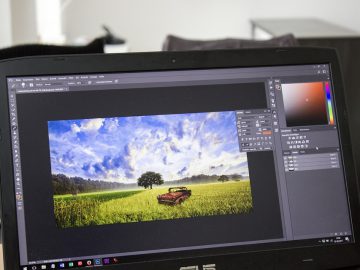
At the very top end of the image editing pyramid is Photoshop. Its color tools, drawing abilities, layered editing, filters, plug-in support, selection capabilities, and text tools make it the industry standard. (Adobe removed its 3D editing tools from Photoshop because of the changing graphics hardware landscape; you can find 3D functionality in the company’s Substance 3D line of applications.) The company continues to add unique, state-of-the-art features.
Recommended by Our Editors

(Credit: Adobe/PCMag)
Photoshop (and its included companion, Adobe Camera Raw utility) is where you find Adobe’s latest and greatest imaging technology, such as the previously mentioned Firefly generative AI features, as well as Content-Aware Crop, Detail Enhancement, Neural Filters, Perspective Warp, and Subject Select. The program offers a comprehensive suite of tools for professionals in the imaging industry, including Artboards, Design Spaces, and realistic, customizable brushes.
Pros need more than this one application, though, and many use workflow programs like ACDSee Photo Studio, Lightroom, AfterShot Pro, or Photo Mechanic for workflow functions like importing and organization. In addition to its workflow prowess, Lightroom offers mobile photo apps, allowing photographers on the go to get some work done before returning to their PCs.
CyberLink PhotoDirector, ON1 PhotoRAW, and Zoner Studio combine Lightroom and Photoshop features at a lower price, but they don’t match the level of power and ease you get in the Adobe software. Emerging HDR photo file formats, such as AV1 and JXL, are also starting to appear, and Adobe Lightroom and Zoner Photo Studio support editing photos with wide color spaces.
If tethered shooting—controlling the camera in the software from the computer while it’s attached—is part of your workflow, you should try Capture One. It gives you a lot of related tools, along with top-notch raw file conversion. Lightroom Classic is also strong in this area.
DxO PureRAW is another tool professionals might want in their kit due to its excellent lens-profile-based corrections and DeepPrime noise reduction. Topaz Photo is another top choice for removing camera sensor noise. Skylum Luminar, too, comes with unique AI-powered features, such as automatic power line removal, which can instantly enhance many a landscape or cityscape. It also has unique depth-based lighting options. You can use it as either a standalone app or as a Photoshop plug-in.
Apple Pixelmator Pro, Capture One, DxO PhotoLab, Lightroom, and Photoshop all offer precise local selection tools. For example, they let you select the part of a photo within a color range or based on the subject. You can then refine the selection of challenging content, such as a model’s hair or trees on the horizon. These tools help fashion and nature photographers, in particular, make their subject stand out.
How Can Plug-Ins Expand Your Editing Options?
One more thing to consider when putting together your budget is third-party plug-ins for professional-level software. The excellent DxO ViewPoint, Nik Collection, and RNI All Films are good examples of this large class of software. These can add more effects and adjustments than you find in the base software. They often include tools for film looks, black-and-white options, sharpening, and noise reduction. You can install several of these products as Lightroom Classic or Photoshop plug-ins, or use them as standalone programs.